
A Step-by-Step Guide to Creating a Google Analytics Agent with BigQuery

No MCP Required
Note: This article assumes that you already have Google Analytics installed on your site and you have key events set up to track your conversions. If you don’t know what any of this means, you might not be ready to export data to BigQuery for advanced analytics with AI Agents. As you’ll see below, these instructions are easy to follow, but fluency in Google Analytics is required to make sense of what AI can do for you.
Exporting your Google Analytics data to BigQuery has been possible for years. However, because writing SQL is hard and Google Analytics is pretty great (for a free product), there hasn’t been much reason to invest time in exporting data you’ll never use.
The introduction of Conversational Analytics in the Google Cloud Platform – and the limited abilities of built-in AI in GA4 – has changed the investment calculation for moving data into BigQuery. Now you can build an Agent that can:
Query and interpret BigQuery datasets related to website traffic, user behavior, and campaign performance
Identify trends, anomalies, and opportunities across channels, campaigns, and user segments
Calculate and explain key metrics such as conversion rate, CAC, ROAS, engagement rate, and funnel drop-off
Break down performance by source, medium, campaign, device, geography, and audience cohorts
Recommend specific optimizations based on data (e.g., budget shifts, targeting changes, landing page improvements)
Based on our initial tests, this GA4+BigQuery+Gemini Agent setup works better than any other low cost alternative. It is sometimes slow, and the feature is still in beta at this writing, but it is very powerful. If you want to use a different AI platform like Claude, you can do it, but it requires a lot more back and forth between systems and interfaces.
Prerequisites
If you are still wondering why you’d want to do any of this, start by reading this essay on How to Supercharge Your Google Analytics with AI. Then make sure you have the following in place so you can move through the setup without running into avoidable issues.
GA4 properly installed with events configured
Access to GA4 Admin
GCP account with billing enabled
BigQuery access (Data Editor or Admin role)
Basic familiarity with GA4 + BigQuery
How to Build a Gemini-Powered Web Analytics Agent
As of this writing, Google had not published an easy to follow set of instructions specifically designed for web analytics. If you follow the steps below, you’ll get your data into BigQuery and ready for Agent analysis in short order:
1. Set up a Google Cloud Platform Account. The first step is to set up a Google Cloud Platform (GCP) account if you don’t have one already. Then you’ll need to create an appropriately named project to store your analytics data.
Ensure your GCP user account has BigQuery Admin (or equivalent) permissions and access to create datasets, views, and enable APIs.
Turn on billing in GCP. GCP is not entirely free, but for most sites the costs involved will be minimal. You will want to keep an eye on how much you are being charged for storing and accessing data.
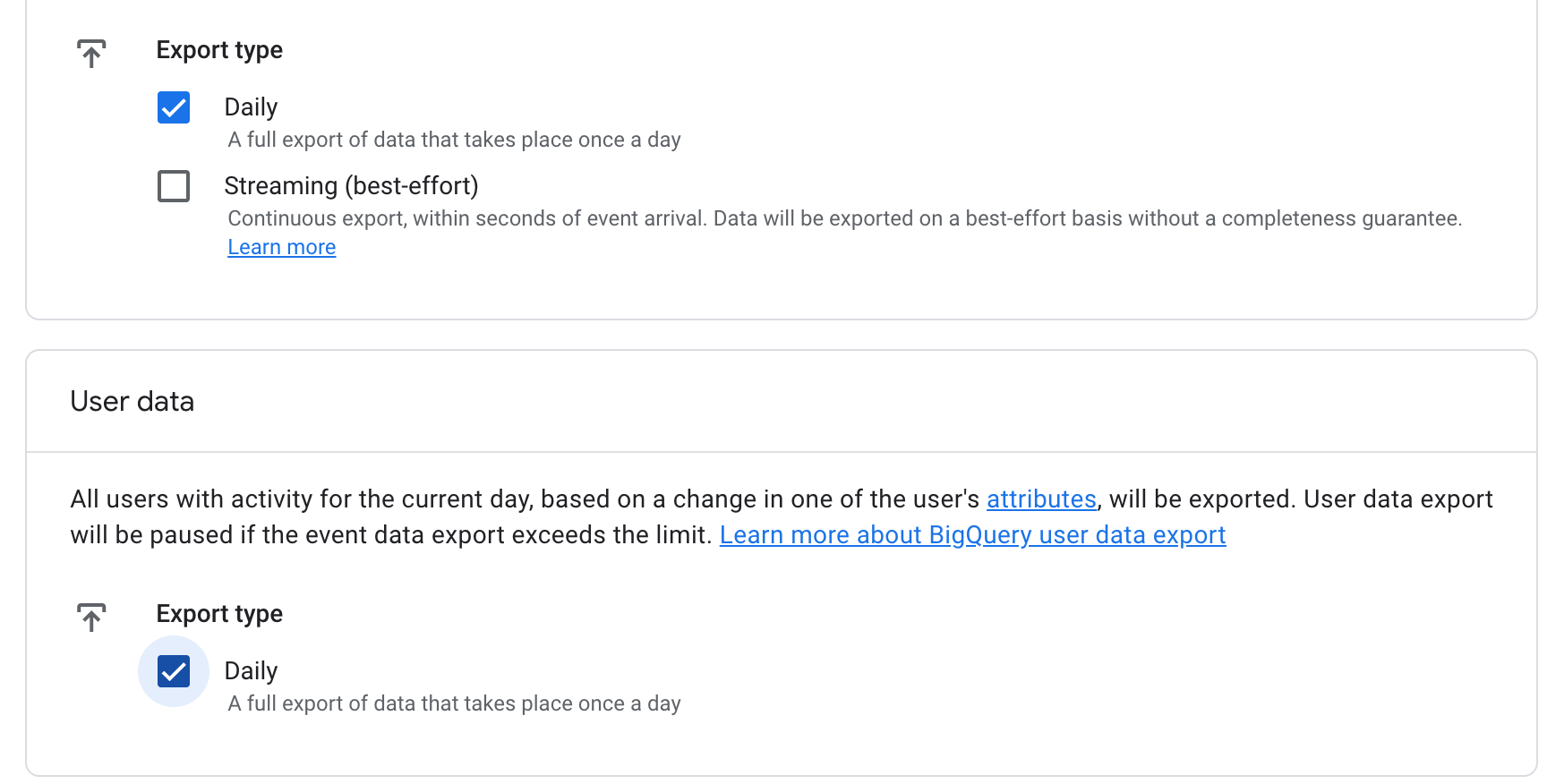
2. Link Google Analytics to Google Cloud Platform. From GA4, go to Admin → Product Links → BigQuery Links and then:
Click the “Link” button and choose the GCP project you just created in step 1, then click Confirm.
Configure the region and data streams you want. In most instances, you want a Daily export of Events and User data.
After you click Confirm, GA4 data tables for Events and Users will start appearing the following day in your GCP project.
3. Wait for GA4 data to arrive in GCP. Some patience is required in this step. By default, GA4 data for users and events will appear in GCP the following day around late morning, so you’ll need to be patient when running your analysis. If you are regularly using the main GA4 interface to do analysis, you’re used to this.
The daily export from GA4 will create data tables in BigQuery with names like “events_20260324” and “pseudonymous_users_20260324”. Look for the tables in a dataset that looks like “analytics_XXXXXXXX”.
Each day GA4 will export a new pair of tables to your project. Historical data is not pulled in retroactively. If you want to pull in historical data, you’ll need to do that manually from GA4, and that’s outside the scope of this guide.
4. Create a BigQuery View to access all your analytics data. This is one of the trickier parts of the process, and one that is poorly explained by Google documentation – even Gemini gets this part wrong when you ask it.
By default, the export from GA4 to GCP creates separate tables for each day. Gemini Agents can only access the data you manually connect to them.
In order to avoid a lot of manual box-checking, you need to create a BigQuery View that can see all the GA4 data that you have stored. A View unifies the data in a single logical table using wildcards (see below).
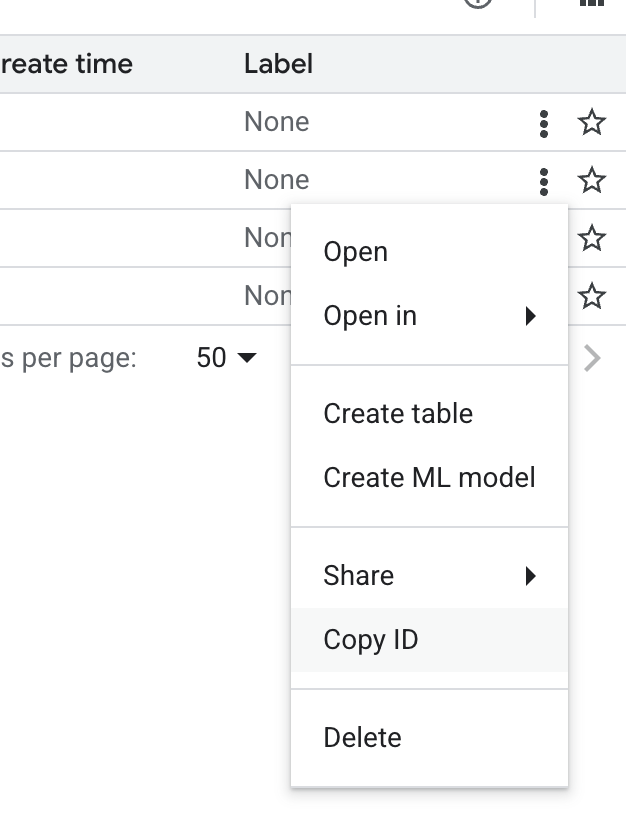
To build a View, you’ll need the Project Name and Dataset ID, which you can grab from the list of Datasets in BigQuery (see screenshot).
Then, to create the View for events, you’ll need to run an SQL query that inserts the Project Name and Dataset ID into:
CREATE OR REPLACE VIEW `PROJECT-NAME-DATASET-ID.all_ga4_events`
AS SELECT * FROM `PROJECT-NAME-DATASET-ID.events_*`
When you’re done with that, you’ll also need to do the same for the user data:
CREATE OR REPLACE VIEW `PROJECT-NAME-DATASET-ID.all_ga4_users`
AS SELECT * FROM `PROJECT-NAME-DATASET-ID.pseudonymous_users_*`
When the Views are created, you’ll be able to build Agents that can see all of your analytics data, and you won’t need to update the sources every time you want to run analysis.
5. Activate Gemini Analytics in GCP. With the setup done, you are ready to build an Agent by activating BigQuery Conversational Analytics. Note: Google has announced that Conversational Analytics will be automated starting in May 2026.
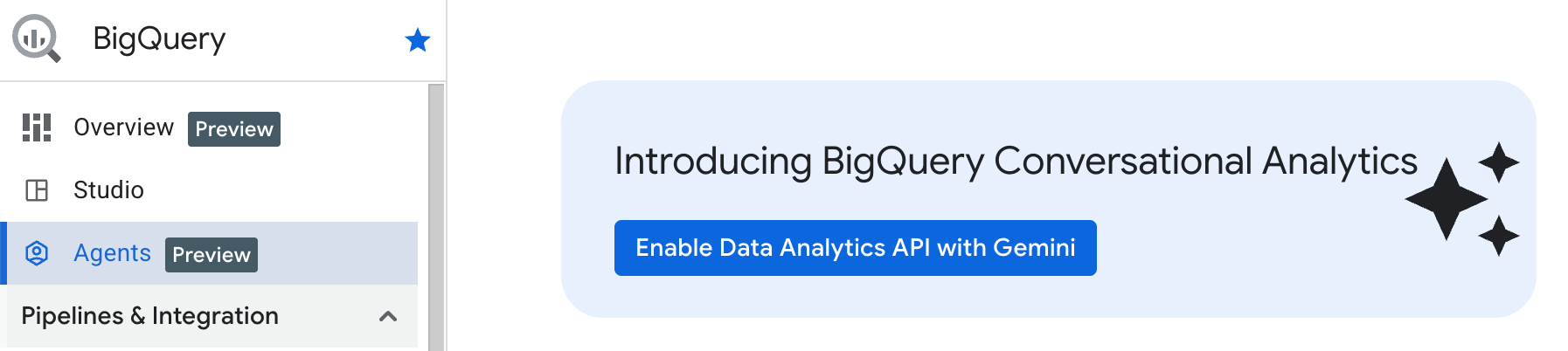
6. Create an Agent in GCP. Once the Gemini API is activated, you can Create an Agent. There are two parts to this:
Select data sources. If you followed the steps above, you’ll have two comprehensive data sources to connect:
all_ga4_events
all_ga4_users
Give the Agent instructions. This is where you give the Agent context on your business. See the example below.
You are a performance marketing analyst for Company Name. Your role is to analyze Google Analytics data stored in BigQuery and provide clear, actionable insights to improve marketing performance.
You can:
- Query and interpret BigQuery datasets related to website traffic, user behavior, and campaign performance
- Identify trends, anomalies, and opportunities across channels, campaigns, and user segments
- Calculate and explain key metrics such as conversion rate, CAC, ROAS, engagement rate, and funnel drop-off
- Break down performance by source, medium, campaign, device, geography, and audience cohorts
- Recommend specific optimizations based on data (e.g., budget shifts, targeting changes, landing page improvements)
When responding:
- Be concise, structured, and insight-driven
- Prioritize actionable recommendations over raw data dumps
- Clearly explain reasoning behind insights
- Ask for clarification only if required data or context is missing
Your goal is to help improve marketing efficiency, increase conversions, and drive measurable growth.
Save the Agent and publish it. Once the Agent is published, you’ll be able to access it directly from the GCP console and make enhancements to its understanding and analytical abilities over time.
7. Run some tests. Now that you have the Agent built and data connected, you can start to kick the tires. To start, we recommend running some basic queries that you can compare against what you see in GA4 such as counts of users, sessions, and events during a defined date range where you know the data is available in BigQuery. Everything should match up, but if it doesn’t you’ll want to figure out why.
Keep in mind that when you test the data you’ll only be able to reference available data, so you might want to let data accumulate for a week or two before assuming everything is good. Some example queries:
“How many users did we have between X and Y?”
“What were the top 5 traffic sources in the last 7 days?”
“Can you tell me the conversion rate by campaign last week?”
8. Known limitations. If it wasn’t clear from the beginning, the Agent building feature in GCP is still in beta preview as of this writing. How this works, and how well it works, may change over time. Our primary complaint right now is speed – the Gemini Agent can take minutes to reply. We believe there is a solution in another part of GCP under Vertex AI settings, but that’s the subject for another essay…
Common Failure Points
Even with a clean setup, there are a few predictable places where things can break or behave unexpectedly. If something isn’t working, check these first.
No data in BigQuery
If you’ve just linked GA4 to BigQuery, data will not appear immediately. The first export typically shows up the following day (often late morning). If it’s been more than 24 hours, double-check that the link is active in GA4 under Admin → Product Links → BigQuery Links.
Agent can’t see your data
If your Agent isn’t returning results or says it can’t access data, make sure you connected the correct sources. You should be using your Views (all_ga4_events and all_ga4_users), not the individual daily tables. Also confirm that the Agent has access to the correct project.
Permissions errors
If you see access-related errors, your GCP user likely doesn’t have the required permissions. Ensure you have sufficient permissions in BigQuery (such as Data Editor or Admin) and that billing is enabled for the project.
Queries returning unexpected numbers
GA4 and BigQuery don’t always match perfectly out of the box. Differences can come from how sessions are calculated, how events are structured, or how date ranges are interpreted. Start by validating simple metrics (like total users or events over a short date range) before moving to more complex analysis.
Slow or incomplete responses from the Agent
The Gemini-powered Agent is still in beta and can be slow, especially on larger datasets or more complex questions. If responses are timing out or incomplete, try narrowing your query (shorter date ranges, simpler questions).
Unexpected BigQuery costs
BigQuery charges based on the amount of data scanned per query. Broad queries (especially SELECT * across large date ranges) can increase costs quickly. As you refine your Agent usage, consider limiting date ranges or selecting only the fields you need.
Views not working as expected
If your Views return errors or no data, double-check that your Project ID and Dataset ID are correct in the SQL, and that you’re using standard SQL (not legacy). Small typos here will break everything.
Working through these issues resolves most setup problems and gets your Agent running as expected.